Recently, I was in a meeting with a potential business partner and their software was performing more slowly than they had expected in the virtual environment on my notebook PC. The application was using a SQL Server 2005 Express Edition database and SQL Server is not normally a good candidate for virtualisation but I was prepared to accept the performance hit as I do not want any traces of the product to remain on my PC once the evaluation is over.
Basic inspection using Task Manager showed that neither the virtual nor the physical system was stressed from a memory or CPU perspective but the disk access light was on continuously, suggesting that the application was IO-bound (as might be expected with a database-driven application). As I was also running low on physical disk space, I considered whether moving the VM to an external disk would improve performance.
On the face of it, spreading IO across disk spindles should improve performance but with SATA hard disk interfaces providing a theoretical data transfer rate of 1.5-3.0Gbps and USB 2.0 support at 480Mbps, my external (USB-attached) drive is, on paper at least, likely to result in reduced IO when compared with the internal disk. That’s not the whole story though – once you factor in the consideration that standard notebook hard drives are slow (4200 or 5400RPM), this becomes less of a concern as the theoretical throughput of the disk controller suddenly looks far less attainable (my primary hard drive maxes out at 600Mbps). Then consider that actual hard disk performance under Windows is determined not only by the speed of the drive but also by factors such as the motherboard chipset, UDMA/PIO mode, RAID configuration, CPU speed, RAM size and even the quality of the drivers and it’s far from straightforward.
I decided to take a deeper look into this. I should caveat this with a note that performance testing is not my forte but I armed myself with a couple of utilities that are free for non-commercial use – Disk Thruput Tester (DiskTT.exe) and HD Tune.
Both disks were attached to the same PC, a Fujitsu-Siemens S7210 with a 2.2GHz Intel Mobile Core 2 Duo (Merom) CPU, 4GB RAM and two 2.5″ SATA hard disks but the internal disk was a Western Digital Scorpio WD1200BEVS-22USTO whilst the external was a Fujitsu MHY2120BH in a Freecom ToughDrive enclosure.
My (admittedly basic) testing revealed that although the USB device was a little slower on sequential reads, and quite a bit slower on sequential writes, the random access figure was very similar:
| Internal (SATA) disk | External (USB) disk | |
|---|---|---|
| Sequential writes | 25.1MBps | 22.1MBps |
| Sequential reads | 607.7MBps | 570.8MBps |
| Random access | 729.3MBps | 721.6MBps |
Testing was performed using a 1024MB file, in 1024 chunks and the cache was flushed after writing. No work was performed on the PC during testing (background processes only). Subsequent re-runs produced similar test results.
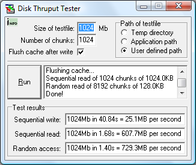
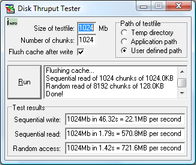
Something doesn’t quite stack up here though. My drive is supposed to max out at 600Mbps (not MBps) so I put the strange results down to running a 32-bit application on 64-bit Windows and ran a different test using HD Tune. This gave some interesting results too:
| Internal (SATA) disk | External (USB) disk | |
|---|---|---|
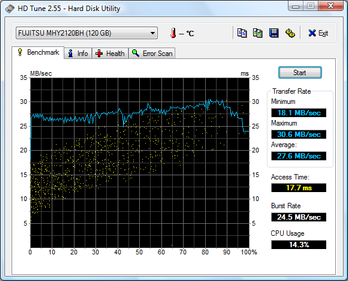
| Minimum transfer rate | 19.5MBps | 18.1MBps |
| Maximum transfer rate | 52.3MBps | 30.6MBps |
| Average transfer rate | 40.3MBps | 27.6MBps |
| Access time | 17.0ms | 17.7ms |
| Burst rate | 58.9MBps | 24.5MBps |
| CPU utilisation | 13.2% | 14.3% |
Based on these figures, the USB-attached disk is slower than the internal disk but what I found interesting was the graph that HD Tune produced – the USB-attached disk was producing more-or-less consistent results across the whole drive whereas the internal disk tailed off considerably through the test.

There’s a huge difference between benchmark testing and practical use though – I needed to know if the USB disk was still slower than the internal one when it ran with a real workload. I don’t have any sophisticated load testing tools (or experience) so I decided to use the reliability and performance (performance monitor) capabilities in Windows Server 2008 to measure the performance of two identical virtual machines, each running on a different disk.
Brent Ozar has written a good article on using perfmon for SQL performance testing and, whilst my application is running on SQL Server (so the article may help me find bottlenecks if I’m still having issues later), by now I was more interested in the effect of moving the virtual machine between disks. It did suggest some useful counters to use though:
- Memory – Available MBytes
- Paging File – % Usage
- Physical Disk – % Disk Time
- Physical Disk – Avg. Disk Queue Length
- Physical Disk – Avg. Disk sec/Read
- Physical Disk – Avg. Disk sec/Write
- Physical Disk – Disk Reads/sec
- Physical Disk – Disk Writes/sec
- Processor – % Processor Time
- System – Processor Queue Length
I set this up to monitor both my internal and external disks, and to log to a third external disk so as to minimise the impact of the logging on the test.
Starting from the same snapshot, I ran the VM on the external disk and monitored the performance as I started the VM, waited for the Windows Vista Welcome screen and then shut it down again. I then repeated the test with another copy of the same VM, from the same snapshot, but running on the internal disk.
Sadly, when I opened the performance monitor file that the data collector had created, the disk counters had not been recorded (which was disappointing) but I did notice that the test had run for 4 minutes and 44 seconds on the internal disk and only taken 3 minutes and 58 seconds on the external one, suggesting that the external disk was actually faster in practice.
I’ll admit that this testing is hardly scientific – I did say that performance testing is not my forte. Ideally I’d research this further and I’ve already spent more time on this than I intended to but, on the face of it, using the slower USB-attached hard disk still seems to improve VM performance because the disk is dedicated to that VM and not being shared with the operating system.
I’d be interested to hear other people’s comments and experience in this area.
It’s Brent Ozar, actually not Omar, and I’m getting a great laugh out of that.
You’re right about splitting off the VM load to a separate set of spindles (the USB drive). This becomes even more important with laptops, which can often page memory to disk when they’re running virtual servers.
The best environment I’ve found for notebooks is to use an external FireWire raid 0 case. FireWire uses less CPU power than USB, and it has faster throughput. Raid 0 spreads the load evenly across two spindles, although it doesn’t give any data protection in the event of a hard drive crash.
Then, make sure you’ve got enough memory on the laptop – 4gb is a good number. Go into Task Manager, Performance tab, and look at the Page File Usage graph and the Commit Charge Total number. If you’re paging memory to disk, then your performance will suffer dramatically. Start the VM and wach to see if the page file usage goes up. If it does, you probably need more memory.
Hope that helps!
Hi Brent – so sorry for the mix-up over your name (now corrected) – at least it gave you a laugh!
The “host” laptop has 4GB and is only using about 2.5GB when the VM is running. Windows Server 2008 has a slightly different performance tab without any details for commit charge but with only 65% physical memory usage I can’t imagine that too much is paging – the VM is not maxed out on memory usage either.
That firewire RAID 0 (also known as scary RAID) disk unit looks pretty sweet, and a firewire interface will outperform the maximum transfer rate on the laptop hard disks. Unfortunately this PC only has USB :-( .
Thanks for the pointers though – and thanks for the great article.
Mark
Have you looked at eSATA at all? I’ve started looking around at what eSATA ExpressCards and eSATA caddies are available, but after reading Brent’s comment I might be able to get away with FireWire instead.
You’re welcome, glad I could help!
Hi Aaron – I’ve got a caddy here that will do eSATA or USB 2.0 and eSATA should be good (providing external data transfer at internal speeds) – no eSATA port on this notebook PC though :-( .
In any case, with the laptop hard drives maxing out at about 600Mbps, the USB 2.0 port doesn’t seem to be that much of a bottleneck. Would be a different story on a real server.
Aaron has now done some testing of this using eSATA that suggests it may help quite a bit.